Creating the iFrame
The iFrame needs certain parameters to display content.
Those parameters are:
{{site}}: the website identifier associated with your Verified Reviews account.
{{product}}: your product’s identifier.
{{token}}: a sha1 hash of your website identifier and your secret key.
Parameters can also be added to pre-populate certain fields:
{{firstName}}: the user’s first name.
{{lastName}}: the user’s last name.
{{email}}: the user’s email address.
{{category}}: the category to which you want to assign the question.
{{productPage}}: the URL of the product page.
This way, the last name, first name, and email address will be pre-populated in the iFrame’s forms.
If the category field is left empty, the question will be assigned to the product’s category by default.
iFrame tag:
<iframe src="//cl.avisverifies.com/medias/components/html/iframe/{{site}}_iframe.html#?idWebsite={{site}}&productI d={{product}}&token={{token}}&firstName={{firstName}}&lastName={{lastName}}&email={{email }}&category={{category}}&productPage={{productPage}}" id="myQAIframe"></iframe> <script type="text/javascript" src="//cl.avisverifies.com/medias/components/html/js/iframeResizer.min.js"></script> <script type="text/javascript"> (function(){ iFrameResize({log:true}, "#myQAIframe"); })(); </script>
iFrame visual
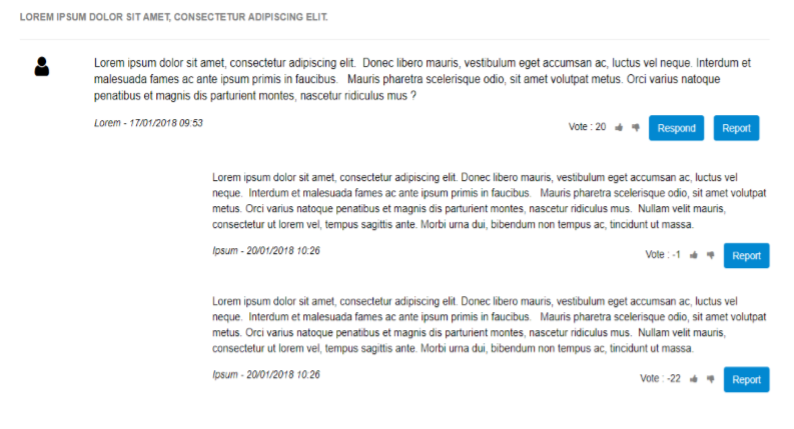
Forms and parameters
The iFrame enables you to group together the following forms: Question / Public answer / Reporting.
It also displays the Q&A voting system.
Each form requires certain fields to be filled in before they can be submitted. The forms have certain fields in common:
- First name/pseudonym: a field in which the user must provide their pseudonym at the very least.
- Email address: a field in which the user will have to provide a valid email address, because each form sends a confirmation email.